A.
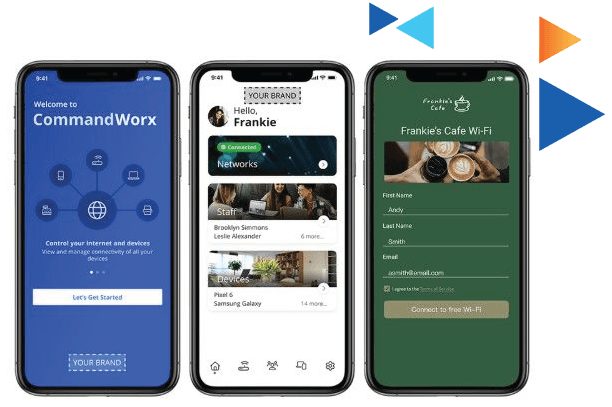
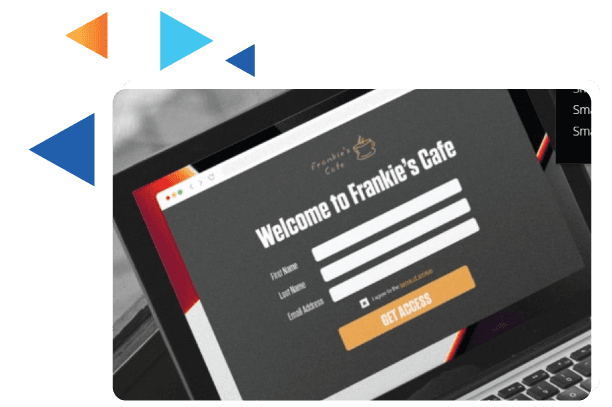
To set up the Customer Portal network, go to Networks, tap the Customer Portal network, and use the toggle to Enable Customer Portal. Once enabled, tap Page Content to begin configuring the portal. Enter a Network Name (SSID) and a Page Heading, then tap Upload to select a cover photo for the portal page.
Next, choose the Login Requirements. You can select Email, First Name, and Last Name to collect customer information for marketing purposes, or select None if you do not wish to collect personal information. You may also enable or disable the Anti-spam Content option to control marketing communications opt-in. When enabled, select the appropriate Anti-spam Consent type, enter either a consent webpage URL or plain text, and confirm whether anti-spam consent is legally required in your locality.
You can then configure the Terms of Service by selecting the Terms of Service type and entering either a webpage URL or plain text. Customize the Button Text and tap Save once your page content settings are complete.
To customize the appearance of the Customer Portal, tap Branding. Upload a logo image, then enter or select colors for the background, font, primary button, and button font using hex codes or the color selector. Tap Save to apply your branding changes.
To control when the Customer Portal network is available, tap Network Access Hours. From the Network Hours dropdown, choose Always On, Every Day, or Custom to set specific availability times throughout the week. Tap Save to apply the schedule.
For added security, tap Network Security to configure options such as the Trusted List, Skipped Devices, and Intrusion Settings. You can also manage filtering options by tapping Content Restrictions and configuring content restriction settings.
Finally, tap Customer Portal Visitors to manage visitor data. To adjust how long login information is retained, tap Edit, select a Login Retention period from the dropdown, and tap Save. To receive a list of customers who accessed the Customer Portal, tap Email Customer List File.